a2ztube Youtube Guide banner
a2ztube Youtube Guide avatar
a2ztube Youtube Guide
@a2zguide
Subscribers44K
Views12.2M
Videos360
a2ztube Youtube GuidePublished at December 8, 2025 at 02:37 AM2:03
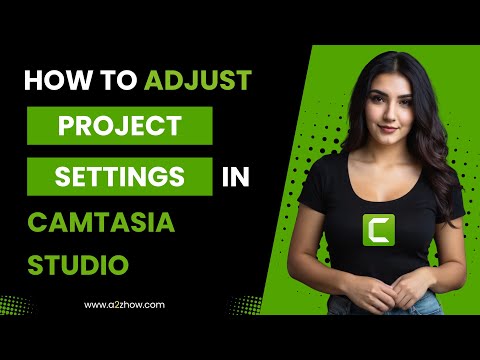
How to Adjust Project Settings in Camtasia Studio thumbnail

How to Adjust Project Settings in Camtasia Studio

6 months agoLong-tail
How to Adjust Project Settings in CamtasiaCamtasia change project dimensionsSet project resolution Camtasia StudioCamtasia modify aspect ratioHow to change canvas size Camtasiatutorial
Published time
December 8, 2025 at 02:37 AM
Duration
2:03
Video type
Science & Technology
Channel region
India
Publish Timing Insight
Not enough timing data
This channel still lacks enough historical upload timing data. Let the channel accumulate more snapshots before evaluating the best timing.
Monetization Insight
No clear monetization tags yet
Focus on view growth, engagement quality, and topic competition to judge monetization potential.
Action Suggestion
Watch for sustained growth
The basic conditions are already in place. Keep watching 7-day views and revenue before deciding whether this topic should become a series.
Views
218
Likes
1
Comments
0
Estimated Daily Revenue
-
Estimated Total Revenue
$0.1 - $0.57
RPM Range
$0.45 - $2.63
1D Views Gain
0
7D Views Gain
0
1D Likes Gain
0
7D Likes Gain
0
1D Comments Gain
0
7D Comments Gain
0
Velocity Score
0%
Topic Cluster
How to Adjust Project Settings in Camtasia
Video Description
How to Adjust Project Settings in Camtasia Studio 1. Open Camtasia Studio on Your Computer. 2. On the Home Screen, Click “New Project. 3. A Blank Editing Workspace Will Appear. 4. Click on the Drop-Down Menu Above the Video Preview (Canvas) Area. 5. Select “Project Settings” From the Menu. 6. A Dialog Box Will Appear Showing Several Options Such As: 7. Canvas Dimensions 8. Width and Height 9. Background Color 10. Frame Rate (FPS) 11. Choose Your Preferred Settings Based on Your Project Needs. 12. For Horizontal Videos Like YouTube Tutorials, Select 16:9. 13. For Vertical Videos Like YouTube Shorts or Instagram Reels, Select 9:16. 14. If You Choose “Custom Dimensions”, Manually Enter Your Desired Width and Height. 15. Click the Color Drop-Down Arrow and Choose Your Preferred Background Color. 16. After Making All the Adjustments, Click “Apply” or “OK” to Save Your Project Settings. 17. This is How You Can Adjust Project Settings in Camtasia Studio. 18. Thank You for Watching. Previous Videos https://youtu.be/ATeL-TnSLMc https://youtu.be/LsOCFLBmldI Hashtags #CamtasiaProjectSettings #ProjectDimensions #CamtasiaStudio #VideoResolution Audio Credits: http://www.Machinimasound.com Jason Farnham (Locally_Sourced) http://www.jasonfarnham.com/ Image Credits Image courtesy of [stockimages] at FreeDigitalVideos.net
Related Topics
Continue with closely related videos to judge topic depth and content format.
Topic: How to Adjust Project Settings in Camtasia
Not enough related-topic video data yet.
Video FAQs

These FAQs clarify what this video page measures, why revenue is estimated, and how to use the page for content research.

What can you learn from this video analytics page?

This page shows views, likes, comments, RPM and revenue estimates, publish timing, topic tags, related videos, and the broader channel context behind the video.

Why are RPM and revenue numbers estimates?

Actual earnings depend on monetized playbacks, audience geography, seasonality, advertiser demand, and monetization status. CloutOrbit provides directional estimates for benchmarking, not exact payouts.

How should you use this page for content research?

Compare timing, topic tags, monetization signals, and adjacent videos from the same channel to spot formats, themes, and publishing patterns worth testing.